> ## Documentation Index
> Fetch the complete documentation index at: https://docs.concord.ad/llms.txt
> Use this file to discover all available pages before exploring further.
# Working in conversations
> Sharing, temporary chats, replying to a message, retrying a run, and the shortcuts worth knowing.
Everything in Concord happens in a conversation. These are the controls around it.
## Where you can chat
Cross-portfolio questions and general requests
Everything scoped to one advertiser
The working surface for building and updating campaigns
Where you start a conversation sets its context. From a media plan, Concord already knows the plan, its campaigns, and its files — so the request can be shorter.
You reach a brand or a media plan from the conversation itself, or through the command palette (⌘K, or Ctrl+K).
## Finding a past conversation
The command palette (⌘K, or Ctrl+K) looks across your conversations. Faster than scrolling the recent list when you remember the campaign but not when you worked on it.
## Temporary chats
Toggle **temporary chat** on Home to ask something without keeping it. A temporary chat will not appear in your history.
Good for a quick check you do not want cluttering the thread list. Not the place for work you will want to come back to — including anything you want a teammate to be able to find later.
## Replying to a specific message
Reply to any message in the thread to point Concord at it. In a long conversation this is the difference between "no, the other campaign" and being understood immediately.
 ## When Concord asks you something
Concord stops and asks rather than guessing when a required detail is missing and your rules do not supply a default. Answer in the thread and it picks the work back up where it left off.
If it asks something you would rather it defaulted, that is a good candidate for a [Skill](/features/skills/creating-skills): tell it what to assume next time.
## Retrying a failed run
When a run fails, retry it from the conversation. Nothing has to be re-typed.
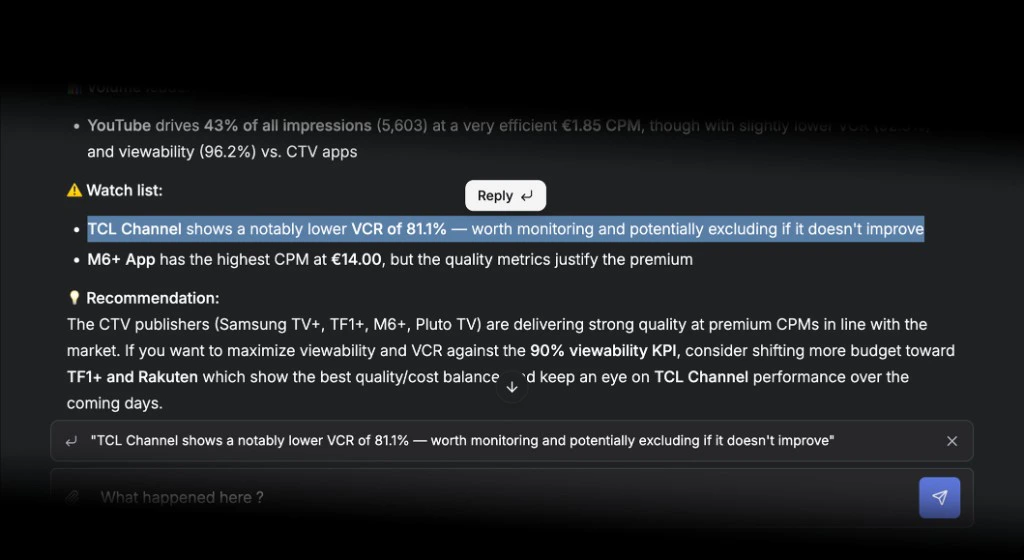
## Selecting text to ask about it
Select any text in the app and ask Concord about the selection. Faster than describing what you are looking at.
## Long conversations
A conversation that runs for a long time is condensed as it goes so it can keep going. It works, and it has a cost worth understanding — see [Long conversations](/features/chat/long-conversations).
The short version: one task, one conversation.
## Shortcuts
Open the command palette to jump anywhere — a new conversation, Home, any settings page — without navigating.
## Browser notifications
Kick off a long campaign build, switch to another brand, and let Concord call you back. See [Notifications](/features/notifications/notifications-overview).
## Best practices
**Be specific.** Budget, dates, targeting, objectives, split logic — in the first message.
**Paste the brief.** Attach it or paste it. Concord reads the whole document and builds from it, which beats re-entering every detail.
**Chat where the work is.** A request from the media plan page needs less context than the same request from Home.
## When Concord asks you something
Concord stops and asks rather than guessing when a required detail is missing and your rules do not supply a default. Answer in the thread and it picks the work back up where it left off.
If it asks something you would rather it defaulted, that is a good candidate for a [Skill](/features/skills/creating-skills): tell it what to assume next time.
## Retrying a failed run
When a run fails, retry it from the conversation. Nothing has to be re-typed.
## Selecting text to ask about it
Select any text in the app and ask Concord about the selection. Faster than describing what you are looking at.
## Long conversations
A conversation that runs for a long time is condensed as it goes so it can keep going. It works, and it has a cost worth understanding — see [Long conversations](/features/chat/long-conversations).
The short version: one task, one conversation.
## Shortcuts
Open the command palette to jump anywhere — a new conversation, Home, any settings page — without navigating.
## Browser notifications
Kick off a long campaign build, switch to another brand, and let Concord call you back. See [Notifications](/features/notifications/notifications-overview).
## Best practices
**Be specific.** Budget, dates, targeting, objectives, split logic — in the first message.
**Paste the brief.** Attach it or paste it. Concord reads the whole document and builds from it, which beats re-entering every detail.
**Chat where the work is.** A request from the media plan page needs less context than the same request from Home.