> ## Documentation Index
> Fetch the complete documentation index at: https://docs.concord.ad/llms.txt
> Use this file to discover all available pages before exploring further.
# Notifications
> Get pinged in your browser when Concord finishes a run or has an action ready to review.
## What are browser notifications
Browser notifications let Concord ping you when a response is ready and the app is in the background. You can launch a campaign build, switch to your media plan, your inbox, or another brand, and come back exactly when it matters.
 ## Enable notifications
Manage browser notifications from your profile.
Click your profile in the top right and select **Settings**.
Open the **Notifications** tab.
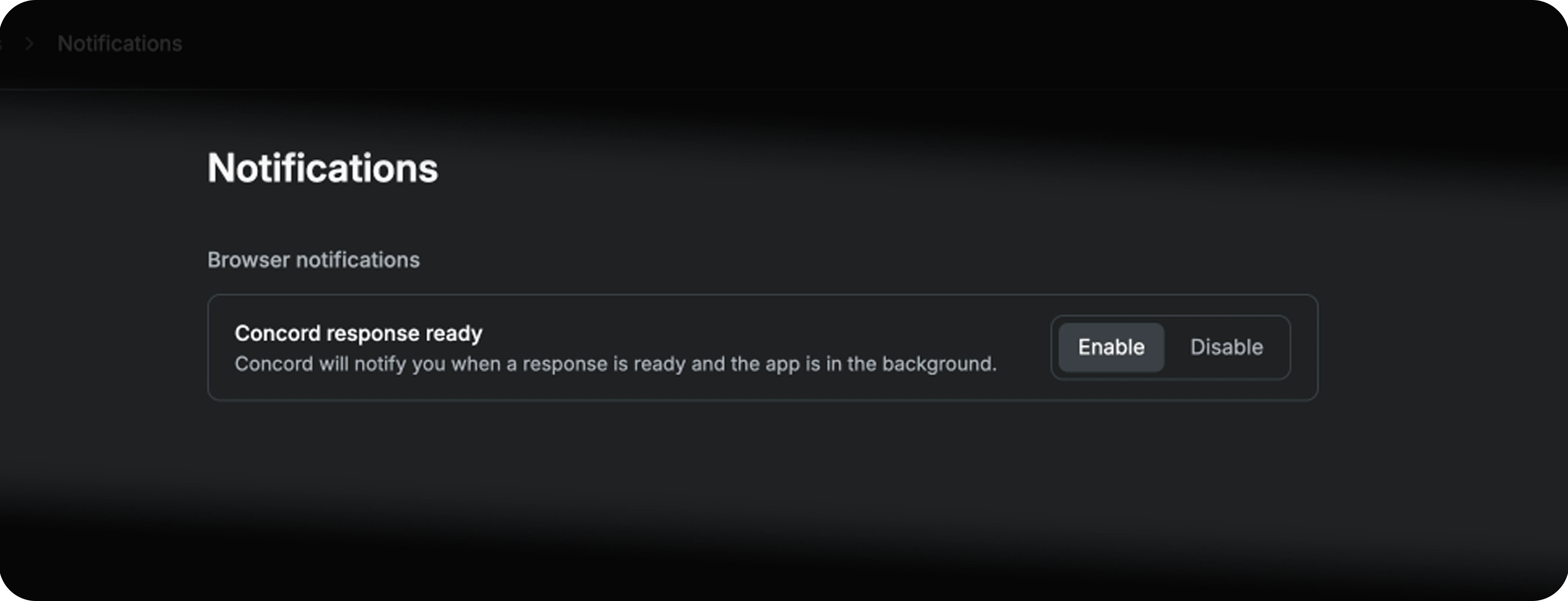
Click **Enable** next to **Concord response ready**. Allow notifications in your browser when prompted.
## When you get pinged
Concord notifies you when:
* A run completes — for example, a campaign build, a report, or a sync.
* A platform action is ready to review and approve.
Notifications only fire when the Concord tab is in the background. If the app is in focus, you keep working without interruption.
## Automation emails
When an automation run completes, Concord sends an email summary to the workspace member who triggered it. The email includes a direct link to continue the conversation in Concord.
Automations are in early access. Contact [support@concord.ad](mailto:support@concord.ad) to get the feature enabled for your workspace.
## Disable notifications
Go to **Settings → Notifications** and click **Disable** next to **Concord response ready**. You can re-enable at any time.
Pair notifications with parallel work: kick off a long campaign build, switch to another brand or your media plan, and let Concord call you back when the run lands.
## Enable notifications
Manage browser notifications from your profile.
Click your profile in the top right and select **Settings**.
Open the **Notifications** tab.
Click **Enable** next to **Concord response ready**. Allow notifications in your browser when prompted.
## When you get pinged
Concord notifies you when:
* A run completes — for example, a campaign build, a report, or a sync.
* A platform action is ready to review and approve.
Notifications only fire when the Concord tab is in the background. If the app is in focus, you keep working without interruption.
## Automation emails
When an automation run completes, Concord sends an email summary to the workspace member who triggered it. The email includes a direct link to continue the conversation in Concord.
Automations are in early access. Contact [support@concord.ad](mailto:support@concord.ad) to get the feature enabled for your workspace.
## Disable notifications
Go to **Settings → Notifications** and click **Disable** next to **Concord response ready**. You can re-enable at any time.
Pair notifications with parallel work: kick off a long campaign build, switch to another brand or your media plan, and let Concord call you back when the run lands.