

Open Connectors
MCP connectors are in the Workspace, Measurement, and Custom categories.
Available connectors
Workspace- Monday.com: boards, items, updates, and files
- Salesforce: Salesforce’s hosted MCP server, with an OAuth app registered by your workspace
- Atlassian Rovo (Jira and Confluence), ClickUp, Dropbox, HubSpot, Notion, Slack, and Tableau
- OneDrive & SharePoint: search your OneDrive, the files shared with you, and your team’s SharePoint sites, read Excel, Word, PDF, and other files, edit Excel files, and save new files or versions. It acts with your Microsoft permissions only, and cannot delete files or change who they are shared with. SharePoint needs a work account.
- AppsFlyer: attribution, campaign performance, SKAN, OneLink, and audience data. Connect it with an account-level AppsFlyer MCP token.
- Adjust: installs, in-app events, revenue, cohorts, and SKAN.
- Google Analytics: sessions, users, events, conversions, and revenue from your GA4 properties.
- Eulerian: campaign, media performance, and analytics data.
Connecting
These connectors are pre-configured by Concord: the server address and authorization settings are already set.1
Open the connector
Go to Settings → Connectors and open the card.
2
Connect your account
Click Connect my account and sign in to the tool. You come back to the connector page, which shows Connected.
Managing a connection
On the connector page:- Test connection checks the connection and lists the tools Concord can use.
- Disconnect my account removes your connection; Reconnect signs in again.
- Share my connection with the workspace lets members who have not connected their own account use yours. Concord then acts as you for them. Off by default.
- Available in this workspace hides the connector from Concord for everyone while keeping it configured.
- Remove from workspace removes the connector and every member’s connection.
Your own MCP servers
Any workspace can add its own MCP server with the Add custom MCP card, in the Custom category. Its tools become available to Concord in your conversations.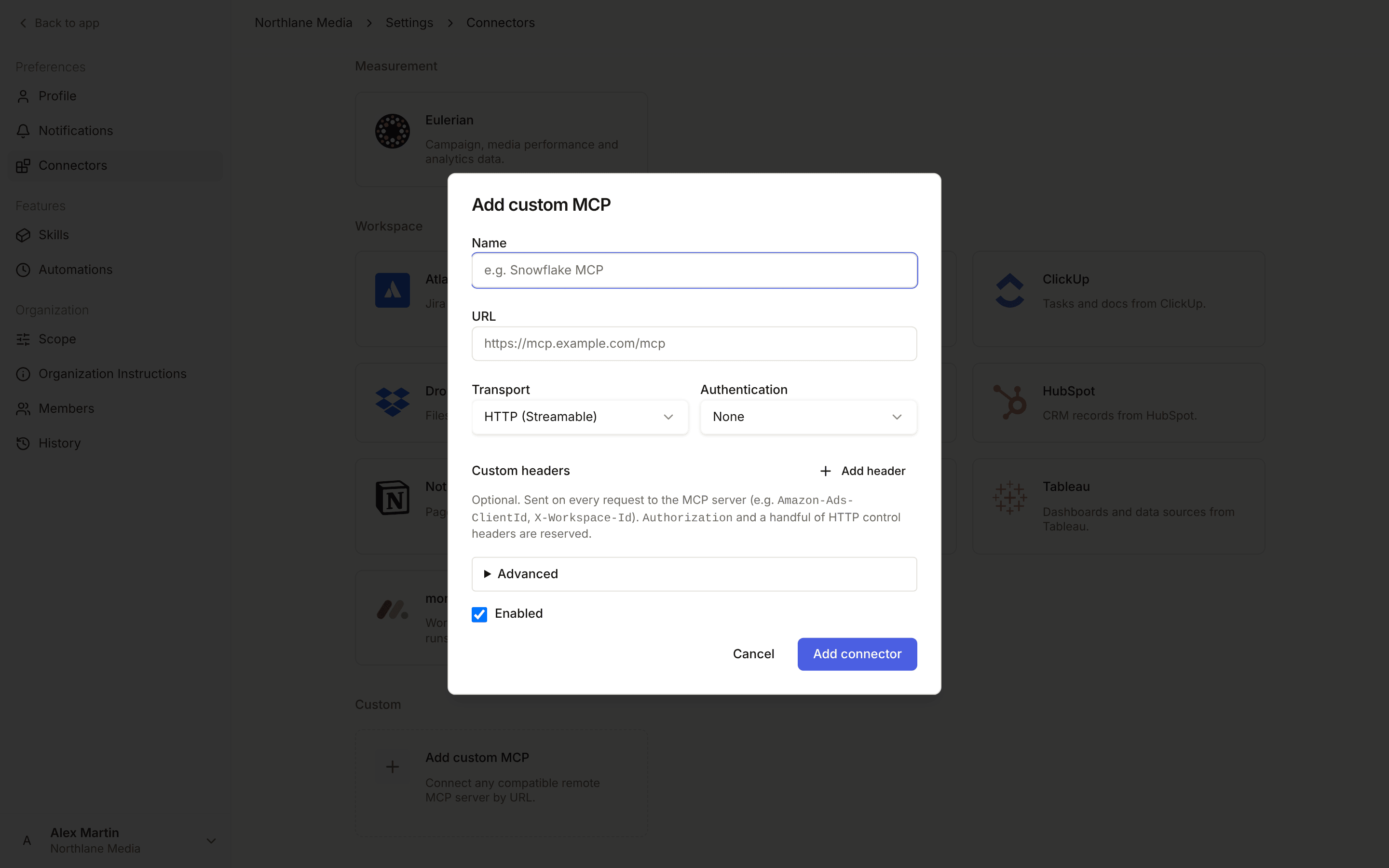
1
Name and address
Enter a Name (for example “Snowflake MCP”) and the server URL. The transport is HTTP (Streamable).
2
Authentication
Choose None, Bearer token, or OAuth 2.1. With OAuth, leave OAuth Client ID empty and Concord registers itself automatically when the server supports it. Otherwise, enter the client ID and secret you registered with your provider, as Entra ID, Okta, Auth0, Cognito, and Salesforce require. You can also set OAuth scopes, Authorization parameters, and the Client authentication method.
3
Optional settings
Add Custom headers if the server needs them. Under Advanced, describe What this server is for so Concord knows when to use it.
4
Tool permissions
For each tool, choose Always allow, Auto, Ask every time, or Exclude, or keep the Default.
5
Connect
Click Connect.