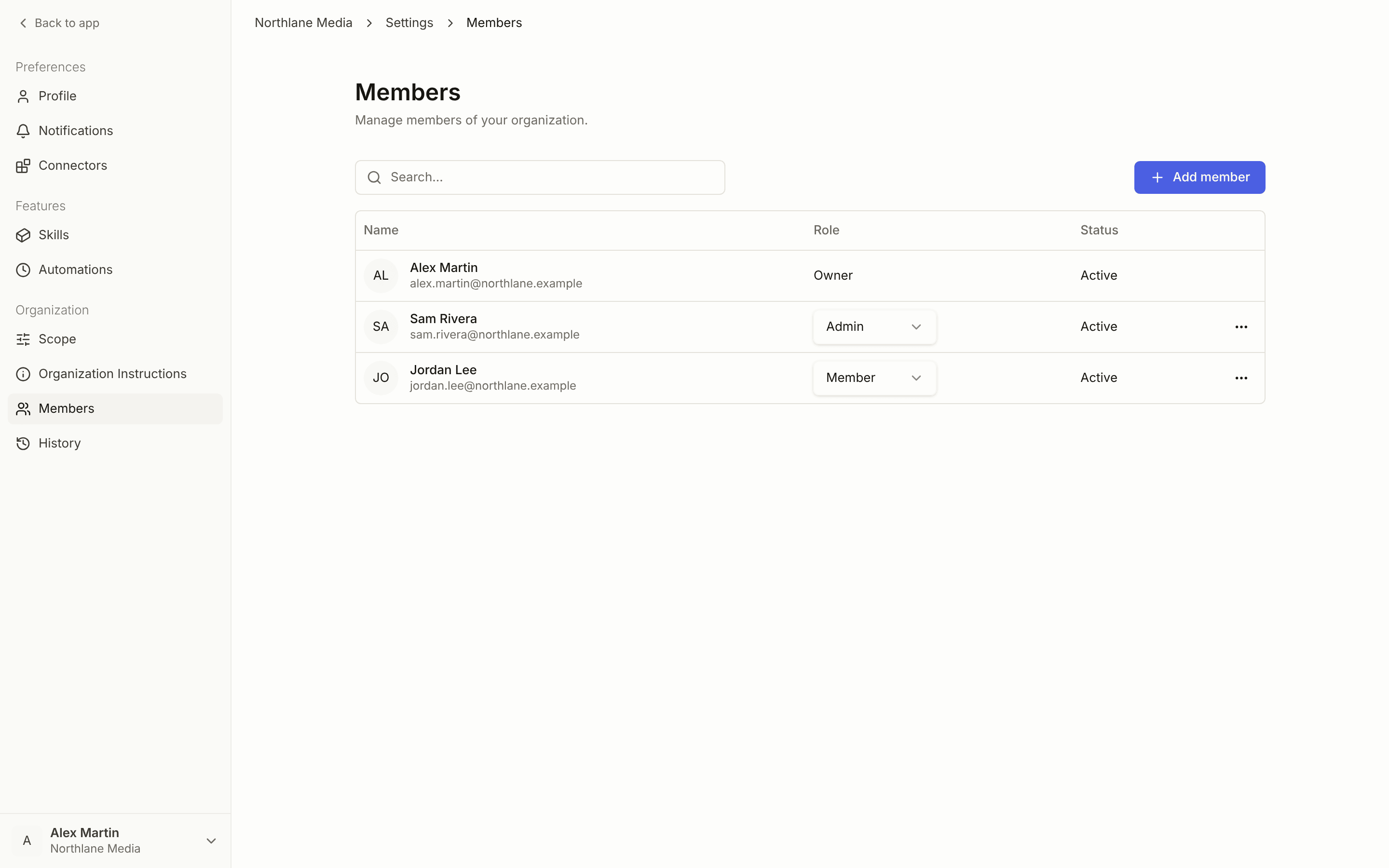
Current team members

See who has access to your Concord workspace and their assigned roles.

Viewing team members

1

Open settings

Click your profile in the top right and select “Settings”.
2

Go to Collaborators tab

In the settings modal, click on the “Collaborators” tab.
3

Review team list

See all current team members with their email addresses and roles.

Team member information

For each team member, you can see:
  • Email address - Their login credentials
  • Role - Their access level (Admin, Trader, or Viewer)
  • Status - Whether they’re active in the workspace

User roles and permissions

Admin

Full workspace access with all capabilities:
  • View and manage all campaigns across all brands
  • Access all reporting and analytics
  • Manage team members and workspace settings
  • Set and modify organisation and brand instructions
  • Approve platform actions and changes
  • Connect and manage integrations

Trader

Campaign management focus with operational access:
  • View and manage campaigns for assigned brands
  • Access relevant reporting and performance data
  • Submit platform actions (requires approval)
  • View organisation and brand instructions
  • Limited settings access

Viewer

Read-only access for monitoring and reporting:
  • View campaigns and performance data
  • Access reports and analytics
  • View instructions and platform actions
  • Cannot make changes or modifications
  • Cannot approve actions or manage settings

Managing team access

Adding new team members

Only Concord administrators can add new team members to your workspace. To invite someone new:
  1. Contact your account manager
  2. Provide the new member’s email address
  3. Specify their desired role level
  4. They’ll receive an invitation to join your workspace

Removing team members

Team member removal is also handled by your account manager:
1

Identify member to remove

Note the email address of the team member who should lose access.
2

Contact account manager

Reach out to your Concord account manager with the removal request.
3

Confirm removal

Your account manager will remove their access and confirm the change.

Role changes

To modify someone’s role level (promote to Admin, change Trader to Viewer, etc.):
  1. Contact your account manager
  2. Specify the team member’s email
  3. Request the new role level
  4. Changes take effect immediately once processed

Workspace collaboration

Single organisation model

Each team member belongs to one organisation workspace:
  • No organisation switching within the platform
  • All collaboration happens within your shared workspace
  • Consistent access to the same campaigns, brands, and data
  • Shared organisation instructions apply to all team members

Best practices

Clear role assignment:
  • Give Admins to workspace managers and senior team members
  • Assign Traders to day-to-day campaign managers
  • Use Viewers for stakeholders who need visibility without editing capability
Regular access reviews:
  • Periodically review who has access to your workspace
  • Remove access for team members who’ve changed roles or left the company
  • Ensure role levels match current responsibilities
Communication with account manager:
  • Keep your account manager updated on team changes
  • Batch multiple team updates in a single request when possible
  • Provide clear context for role level decisions
Plan your team structure in advance. Consider who needs full Admin access versus Trader capabilities, and remember that role changes require contacting your account manager.
Team member changes (additions, removals, role modifications) are processed by Concord administrators, not through the platform interface. Contact your account manager for all team access requests.