Profile information
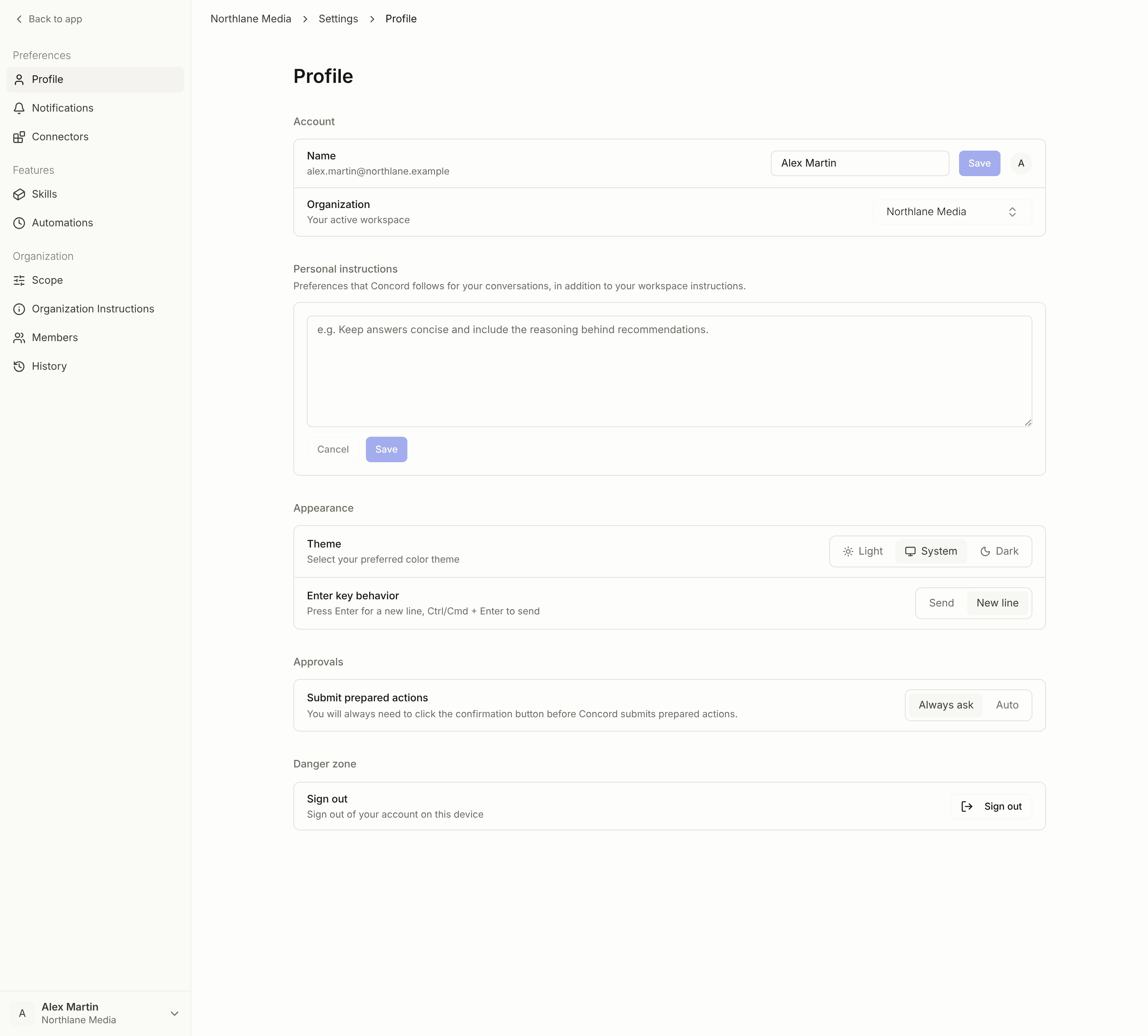
Manage your personal account details and how you appear in Concord.Basic profile details
Profile information
Display name: Your name as it appears to other team members in your workspace Email address: Your login credentials (managed through your organisation’s account settings) Profile avatar: Your profile picture displayed in the interfaceUpdating your profile
Name changes:- Update how your name displays to other team members
- Changes appear immediately across all Concord interactions
- Your display name appears in chat history and platform actions
- Upload a new profile picture or choose from default options
- Recommended size: 400x400 pixels for optimal display
- Supported formats: JPG, PNG, GIF
Email address changes are managed through your organisation’s account administrator. Contact your account manager if you need to update your login email.
Display preferences
Theme selection
Choose between light and dark mode to match your preference and working environment. Light mode:- Clean, bright interface optimal for well-lit environments
- High contrast for easy reading during daytime work
- Standard color scheme for reports and charts
- Reduced eye strain for extended screen time
- Better for low-light working conditions
- Darker interface with maintained readability
Interface preferences
Dashboard layout: Your preferred view for campaign and performance data Notification timing: When you receive updates about campaign changes and platform actions Report formats: Default settings for generated reports and analytics exportsAccount security
Authentication
Your account security is managed through enterprise-grade authentication:- Single sign-on (SSO): Secure login through your organisation’s identity provider
- Multi-factor authentication: Additional security layers as configured by your organisation
- Session management: Automatic logout after periods of inactivity for security
Password and access
For any account access issues:- Try your organisation’s standard password reset process
- Contact your IT administrator for authentication problems
- Reach out to your Concord account manager for platform-specific access issues
Workspace context
Organisation association
Your profile is tied to your organisation’s Concord workspace:- Single organisation: You belong to one workspace without switching capability
- Consistent access: Same campaigns, brands, and data across all sessions
- Role-based permissions: Your assigned role (Admin, Trader, Viewer) determines available features
- Shared collaboration: Work alongside other team members in the same workspace environment
Data and privacy
Personal information:- Profile details are visible only to team members within your organisation workspace
- Your interaction history and preferences are private to your account
- Display name and avatar appear in collaborative features like chat history and platform actions
- Profile information and preferences are maintained while you have active access
- Account data follows your organisation’s data retention policies
- Personal settings and customizations persist across login sessions
Best practices
Profile optimization
Professional appearance:- Use a clear, professional photo for your avatar
- Keep your display name consistent with how colleagues know you
- Ensure your profile reflects your current role and responsibilities
- Choose profile information appropriate for your team environment
- Consider what details are helpful for collaboration versus personal privacy
- Remember that team members can see your display name and avatar in shared spaces
Security awareness
Account protection:- Follow your organisation’s security policies for authentication
- Report any suspicious account activity to your IT administrator immediately
- Keep your profile information current for security communications
- Log out when using shared computers
- Don’t share login credentials with others
- Update your profile if your role or contact information changes
Profile changes (name, avatar) are visible to all team members in your workspace. Email and security settings are managed through your organisation’s account administration.