Prerequisites
- A Google account with access to the DV360 partners or advertisers you want to work on. To make changes, that account needs edit rights on them in DV360.
partners@concord.adadded as a Standard User to each DV360 partner you work on with Concord.
Connect DV360
1
Add Concord as a standard user
In DV360, add
partners@concord.ad as a Standard User to each partner you want to work on.2
Open the connector
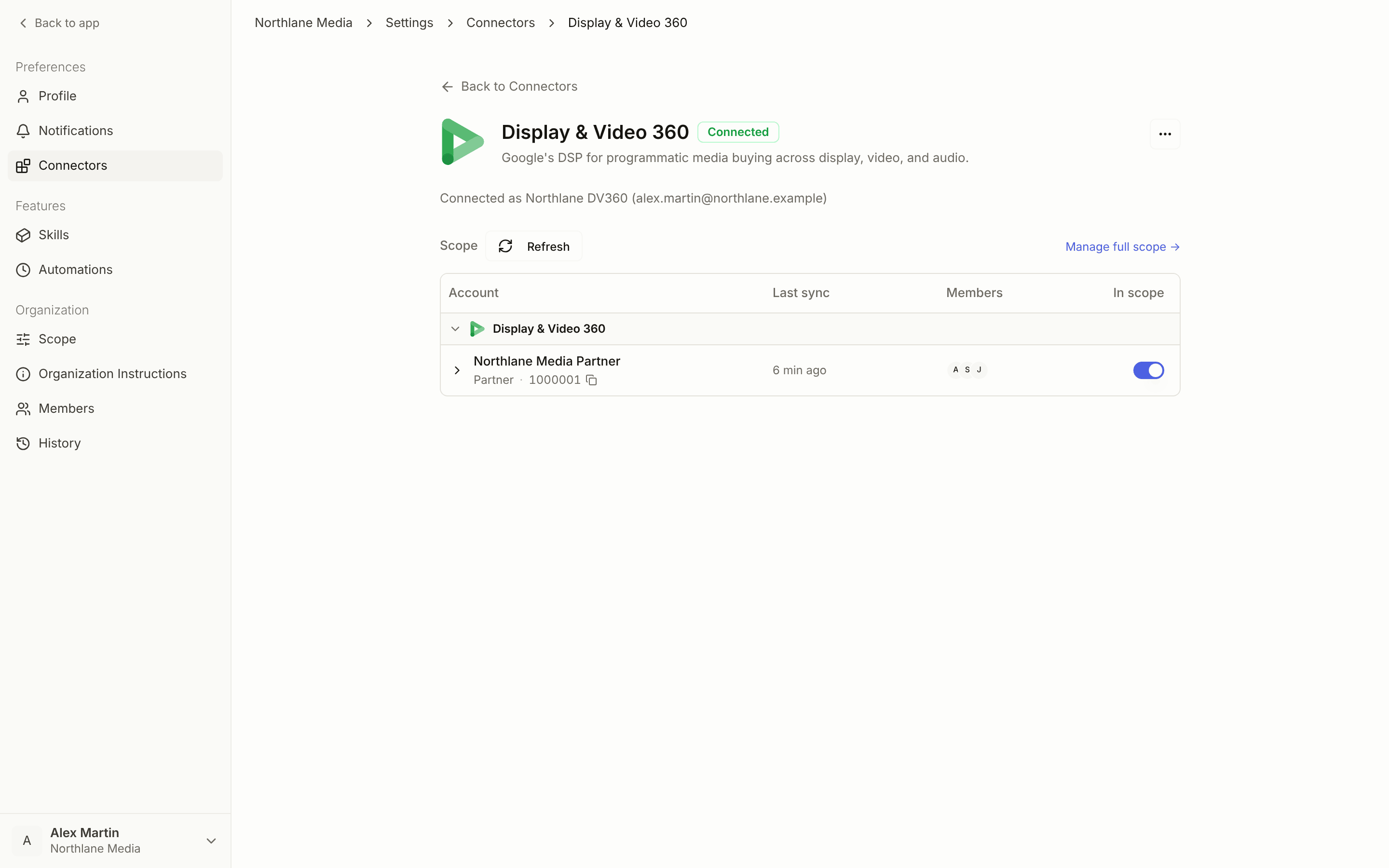
Go to Settings → Connectors and open Display & Video 360 in the Programmatic category.
3
Connect
Click Connect and sign in with your Google account. Concord asks for access to Display & Video 360 and Bid Manager reporting, plus your email and profile so the page can show which Google account is linked.
4
Put partners and advertisers in scope
Back on the connector page, Concord lists the partners and advertisers your account can reach. They start out of scope. An admin turns on In scope for the ones the workspace works on and clicks Save scope. See Managing scope.
What Concord can do with DV360
- Sync campaigns, insertion orders, line items, and performance data
- Create and update campaigns, insertion orders, and line items, including YouTube (TrueView) and Demand Gen line items
- Set targeting, budgets, pacing, and bid strategies
- Pull performance reports
Data synchronization
- Advertisers in scope sync automatically, with history backfilled in the background the first time they enter scope.
- New campaigns and changes appear in Concord shortly after they are made in DV360.